Step 1: Identify the Device ID
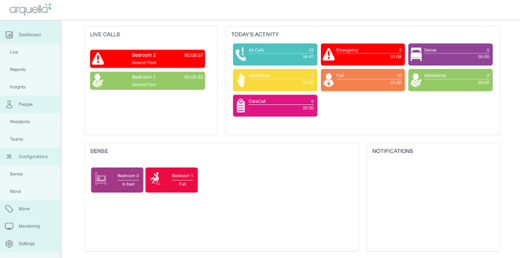
- Note which room the unit is actually in, and what incorrect room name (or generic label like "corridor") currently appears on the panel when the device is pressed.
- Locate the unique Device ID. You can often find this on the device itself.
- Alternatively, you can trigger the device by pressing the orange button and watching the panel to capture the device ID that appears (three digit code in the bottom left of the call on the panel).
Step 2: Update the Engineers App
- Open the Engineers app.
- Look up the device ID you just captured.
- Update the room name and location mapping to match the room the device is physically located in.
Step 3: Verify the Fix
- Go back to the device and press the unit again.
- Confirm that the call now correctly appears on the panel under the new room name.
If you are unable to update the configuration in the app yourself, you can contact Customer Support and provide the following information:
- The device ID
- The current name you see on the panel.
- The actual room the device is in/preferred assigned name.
- A photo of the device, if possible. Support can then update the configuration for you.



Comments